


Top 10 Common 85A Toner Problems And Simple Solutions for Each
Top 10 Common HP 85A Toner Problems and Simple Solutions for Each
The Compatible HP 85A (CE285A) toner cartridge works well when the cartridge, printer, and paper path line up, but a near-empty, badly installed, poorly stored, or dirty-printer situation still produces frustrating print issues. This guide walks through the ten most common 85A problems and a simple fix for each, so you can troubleshoot before swapping the cartridge or calling service.
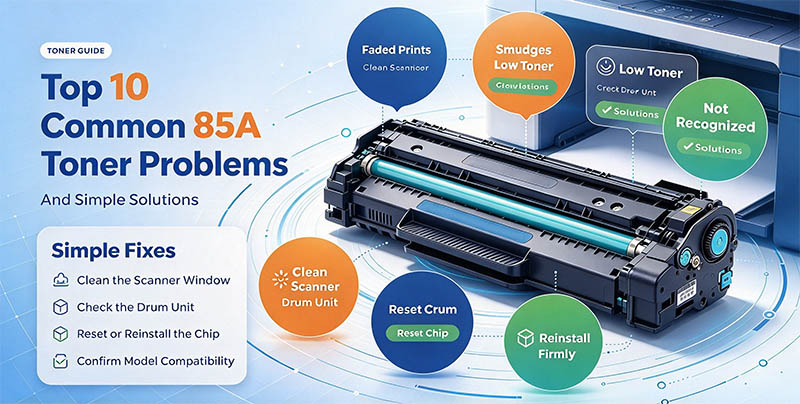
Why does an 85A toner cartridge cause print problems?
An 85A cartridge usually causes print problems for one of four reasons: toner not flowing evenly, a poorly seated cartridge, a paper-path fault in the printer, or a cartridge at the end of its life. Laser printing depends on clean contacts and steady paper travel, so a small fault shows up clearly on the page. Most problems with an 85A cartridge clear up with basic checks and careful handling.
Before assuming the cartridge is defective, confirm the basics. Make sure the printer is on, the paper is dry and loaded correctly, and the cartridge matches your printer. If your printer takes the HP 85A (CE285A) black cartridge, installing a different model can trigger error messages, a poor fit, or no printing at all.
1. Faded or light print
Faded pages are the most common 85A complaint. Text looks gray instead of black, graphics look weak, or one side of the page is lighter. This usually means toner is low, the cartridge sat unused, or the printer is in economy or draft mode.
Remove the HP 85A cartridge and rock it gently side to side. Do not shake it hard, or toner spills or the cartridge breaks. Reinstall, print a test page, and check whether density improves.
Simple solutions:
- Turn off toner-save, eco, or draft mode in the print settings.
- Gently redistribute toner inside the cartridge.
- Check that you are using the correct paper type setting.
- Replace the cartridge if pages stay faded.
- If the cartridge is near empty, redistribution only helps temporarily. A replacement HP 85A cartridge is the fix then.
2. Black streaks or vertical lines
Black streaks usually point to loose toner, a dirty paper path, or a damaged cartridge part. Vertical lines also appear when toner collects on the drum or after rough handling. Since the HP 85A black cartridge is an integrated unit, wear shows directly on the page.
Remove the cartridge and inspect it without touching the drum surface. If you see loose toner inside the printer, wipe it with a dry, lint-free cloth. Avoid household vacuums unless they are rated for toner, because fine toner passes through ordinary filters.
Try these fixes:
- Remove the cartridge and check for spills or damage.
- Clean accessible areas inside the printer with a lint-free cloth.
- Print several blank or test pages to clear minor residue.
- Replace the cartridge if the same line appears in the same place every time.
- A repeated line in an identical position usually means the cartridge is the source, not the document or software.
3. Blank pages
Blank pages confuse because the printer sounds busy yet nothing appears. With an HP 85A cartridge, this happens if the sealing strip was not removed, the cartridge is not locked in place, or the printer is not receiving the job. It also happens when the cartridge is empty.
Remove the cartridge and look for packaging materials. New cartridges include protective clips, covers, or tape that must come off before installation. Reinsert the cartridge firmly and close the door completely.
A quick checklist helps:
- Confirm the correct printer is selected on your computer.
- Print a configuration or test page from the printer menu if available.
- Check for sealing tape or protective packaging.
- Reinstall the cartridge until it sits flat and secure.
- Try another document to rule out a blank file or formatting issue.
- If the printer produces blank pages from every source, the cartridge may be empty, blocked, or defective.
4. Toner smudges on the page
Smudging happens when toner does not bond to the paper. The page looks fine at first, then the print rubs off when touched. This is not always the cartridge. Paper choice and fuser heat also matter.
Laser printers use heat to fuse toner to paper. If the paper is too slick, damp, thick, or not made for laser printing, toner sits on the surface instead of bonding. Wrong media settings cause the same problem because the printer may not adjust fuser temperature.
To reduce smudging:
- Use paper labeled for laser printers.
- Store paper in a dry area.
- Match the printer setting to the paper type.
- Avoid inkjet photo paper in a laser printer.
- Check whether smudging appears only with one paper batch.
- If smudging continues on standard laser paper, the printer may need service, especially if the fuser is not heating correctly.
5. Repeating spots or marks
Repeating dots, specks, or marks make documents look messy. When the same mark repeats at regular intervals, something inside the print path is carrying toner or debris. The cause may be the cartridge, the paper path, or another internal roller.
Remove the 85A cartridge and inspect it for leaks, cracks, or toner buildup. Then check inside the printer for paper scraps, label adhesive, or loose toner. Labels and envelopes sometimes leave residue that causes repeated marks.
Use this process:
- Print a few plain text pages to see if the marks fade.
- Clean visible toner from the printer interior.
- Replace questionable paper or labels.
- Try a different cartridge if the marks stay identical.
- If the pattern disappears with another HP 85A cartridge, the original cartridge was likely the cause.
6. Cartridge not recognized
A "cartridge not recognized" error can appear after installing a new HP 85A cartridge. This happens when the cartridge is not seated fully, a contact is dirty, packaging is still attached, or the cartridge is the wrong model. It can also occur after a firmware or printer reset.
Turn the printer off, remove the cartridge, and reinstall it carefully. Listen and feel for it seating into place, but do not force it. If it does not slide in smoothly, remove it and check alignment.
Helpful steps:
- Confirm the cartridge model matches your printer.
- Remove all shipping clips, seals, and covers.
- Wipe accessible cartridge contacts gently with a dry, lint-free cloth.
- Restart the printer after reinstalling the cartridge.
- Test with a known working cartridge if available.
- If you are using a compatible or remanufactured CE285A toner, the printer may still print after a warning message. Read the screen before deciding the cartridge has failed.
7. Toner leaking inside the printer
Loose toner is messy and leads to streaks, spots, or gray backgrounds. A little toner dust is normal over time, but visible piles or repeated leaks suggest a cartridge problem. Dropping a cartridge, storing it on its side, or using a damaged unit all cause leakage.
Handle a leaking cartridge carefully. Place it on disposable paper, avoid tilting it, and keep toner away from clothing and carpets. Toner is a fine powder, so slow and careful cleanup beats rushing.
What to do:
- Remove the cartridge and place it in a bag or on scrap paper.
- Clean loose toner from accessible areas with a dry cloth.
- Do not use liquids inside the printer.
- Install a clean cartridge and print a few test pages.
- Replace the cartridge if leakage continues.
- A leaking HP 85A (CE285A) black cartridge should not be reused if it keeps contaminating the printer.
8. Gray background or dirty-looking pages
A gray background makes the whole page look dusty. Instead of crisp black text on white paper, the page has a shaded cast. This happens when toner is over-applied, the cartridge is aging, the paper is damp, or settings are too dark.
Start with the easiest change: use fresh, dry paper. Paper absorbs moisture from the air, and damp sheets affect toner transfer. Next, check print density and lower it slightly if it is set high.
Try these fixes:
- Replace damp or low-quality paper.
- Lower print density in the printer settings.
- Clean the printer interior carefully.
- Run the printer's cleaning cycle if available.
- Replace the cartridge if the gray background appears on every page.
- If only one document prints with a gray background, check the file itself. It may contain shading, a watermark, or a background layer printing as designed.
9. Poor print quality after installing a new cartridge
A new HP 85A black cartridge should improve quality, so it is frustrating when the first pages look streaky, faded, or uneven. Sometimes the cartridge needs a few pages to settle after shipping. Other times, missed packaging material or improper installation is the cause.
Remove the cartridge and inspect it again. Make sure the seal was fully pulled out and no protective cover remains. Reinstall, then print several test pages with basic text rather than a heavy graphic file.
Good first steps:
- Confirm the cartridge is the correct CE285A model.
- Check for remaining tape, clips, or protective materials.
- Rock the cartridge gently to distribute toner.
- Print five to ten test pages to stabilize output.
- Compare results using plain laser paper.
- If quality does not improve after these checks, the cartridge may have been damaged in shipping or storage. Contact the seller rather than printing through a faulty cartridge.
10. Page yield seems too low
Many users notice a cartridge runs out faster than expected. This does not always mean the HP 85A cartridge is defective. Toner use depends on what you print, how often you print, and whether pages include bold headings, dense graphics, shaded areas, or large black sections.
A page with a short email uses far less toner than a full-page flyer. Frequent short jobs also use extra toner because the printer starts and stops repeatedly. If your office prints invoices, forms, shipping labels, or reports, usage varies month to month.
Ways to stretch toner life:
- Use draft mode for internal documents.
- Avoid large black backgrounds when not needed.
- Preview documents before printing to prevent mistakes.
- Use duplex printing when appropriate to reduce paper waste.
- Keep the printer clean so poor output does not force reprints.
- If yield suddenly drops with no change in habits, check for leaks, wrong settings, or a cartridge that was not full at installation.
When should you replace the cartridge instead of troubleshooting?
Replace the cartridge when the same defect appears after cleaning, reinstalling, changing paper, and testing settings. Troubleshooting helps with quick issues, but a worn, empty, leaking, or damaged HP 85A cartridge keeps wasting paper and time. If the cartridge causes repeated streaks, faded output, or recognition errors, replacement is usually the efficient solution.
There is also a point where troubleshooting costs more than the cartridge. If you have already cleaned the printer, restarted it, checked settings, and tried fresh paper, continuing to run bad pages creates more frustration. A reliable 85A cartridge should produce consistent black text without constant adjustment.
A simple troubleshooting checklist for CE285A toner
When print quality drops, work through the basics in a calm order. Randomly changing settings or repeatedly removing the cartridge makes the real cause harder to find. This checklist gives a straightforward path before you replace the cartridge.
- Check compatibility: make sure your printer is designed for the CE285A or HP 85A cartridge.
- Inspect packaging: remove all seals, clips, pull tabs, and covers from a new cartridge.
- Reseat the cartridge: take it out and reinstall it firmly without forcing it.
- Use proper paper: choose dry, clean paper made for laser printers.
- Review print settings: turn off economy mode for darker prints or lower density for gray background.
- Clean carefully: wipe accessible toner dust with a dry, lint-free cloth.
- Print test pages: use simple pages to see whether defects repeat.
- Compare cartridges: if available, test another HP 85A cartridge to isolate the problem.
This process separates cartridge issues from printer, paper, and software issues. It also prevents unnecessary replacements when the fix is as simple as changing paper or removing a missed seal.
Better habits for fewer toner problems
Most toner problems are easier to prevent than fix. Store cartridges in their packaging until needed, keep them away from heat and humidity, and avoid touching sensitive surfaces during installation. If you buy more than one HP 85A (CE285A) black cartridge at a time, store extras flat in a clean, dry place.
Printer maintenance matters too. Remove paper scraps promptly, avoid overfilling the tray, and use labels or envelopes only if rated for laser printers. Cheap or damp media create problems that look like cartridge defects, especially smudging and background shading.
It also helps to watch patterns. A one-time smudge may be a dirty sheet, while the same streak on every page points to something consistent. The more clearly you observe the symptom, the faster you can choose the right solution.
Final takeaway
The HP 85A cartridge is usually straightforward to manage, and most common problems have simple fixes. Faded print, streaks, blank pages, leaks, smudges, and recognition errors usually come down to installation, paper, settings, cleanliness, or normal wear. By checking the basics first and replacing the cartridge only when needed, you keep your printer producing clean, sharp black-and-white pages with less downtime.


