


How to Replace a Brother Toner Cartridge
source: Time:2026-02-27 views:265
How to Replace a Brother Toner Cartridge
The process is pretty straightforward across most Brother models. The only thing that trips people up? Confusing the toner cartridge with the drum unit. Let's clear that up first, and then we'll walk through the steps.
Wait—Toner or Drum? (This Matters)
Your Brother printer uses two separate parts that work together:Toner cartridge (TN-xxx): This is the actual powder. Think of it like the ink in a pen. You replace this when it runs out.
Drum unit (DR-xxx): This is the larger component the toner clicks into. It uses static electricity to transfer that powder onto paper. It lasts much longer—usually tens of thousands of pages.
When your printer says "Replace Toner," it means exactly that: the toner. Not the drum. So if you bought a box with a model number starting with "TN" (like TN-760), you're good. If it starts with "DR," you grabbed the wrong thing. Save it for later—you'll need it eventually.
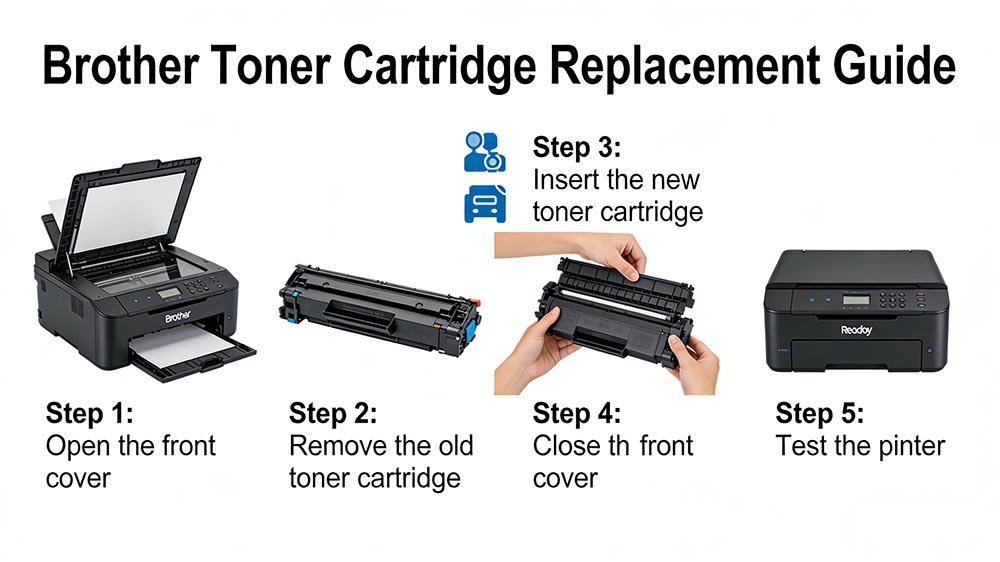
Step-by-Step: Swapping It Out
Open the front cover. With the printer on (yes, leave it on), pull the front cover toward you. The access door swings down.Pull out the assembly. Inside, you'll see a plastic unit with a handle—usually green or blue. Grab it and pull straight out. It should slide out smoothly, like opening a drawer.
Release the old toner. Set the unit on a flat surface. On one side, there's a small colored lever. Push it down, and gently lift the old toner cartridge up and out. Set it aside.
Prep the new cartridge. Unbox your new toner. Hold it level and gently rock it side to side five or six times. This loosens up the powder that settled during shipping. Remove the protective cover and any tape.
Click in the new one. Align the new cartridge with the empty slot in the drum unit and push down firmly until you hear it click. That lever you pushed? It should spring back up on its own.
Slide it back in. Push the whole assembly back into the printer until it stops. Close the front cover. The printer will whir for a moment, and the "Replace Toner" message should disappear.
What If the Message Stays On?
Sometimes the little chip on the new cartridge doesn't make perfect contact on the first try. Open the cover, pull the assembly out, and push it firmly back in. Close the cover and wait a minute. That usually does it.If it doesn't, your printer's internal toner counter might need a manual reset. This varies by model, so the quickest fix is a web search: "Brother [your model number] toner reset" (like "Brother HL-L2390DW toner reset"). You'll find the exact button sequence for your machine.
Standard vs. High-Yield: Which Should You Buy?
When you shop for toner, you'll see two options: standard-yield and high-yield. The high-yield cartridge holds more powder—sometimes two or three times as much.Here's the math: A standard cartridge might cost $50 and print 1,200 pages. A high-yield might cost $80 and print 3,000 pages. You pay more upfront, but your cost per page drops. If you print a lot, high-yield saves you money over time. If you print occasionally, stick with standard.


